Start
pdfplumber tutorial
Nine short steps, two sample PDFs, real output at every step. By the end you will have pulled text, coordinates and tables out of a PDF, and fixed a table that the default settings miss.
Before you start
You need Python 3.10 or newer and pdfplumber installed (python -m pip install pdfplumber, details in the install guide). Download the two sample PDFs into a folder called samples/ next to your script:
- invoice.pdf: a one-page invoice with a ruled table
- bank-statement.pdf: three pages, rows ruled but columns not
Both are fictional and free to reuse (CC0). Every output below was produced by running the code shown, unchanged.
1. Open a PDF and look at it
pdfplumber.open() takes a path or a binary file object (wrap bytes in io.BytesIO) and returns a PDF. Its pages list holds one Page per page, numbered from zero.
import pdfplumber

pdf = pdfplumber.open("samples/invoice.pdf")
print(pdf.metadata["Title"])
print(len(pdf.pages), "page")

page = pdf.pages[0]
print("size:", page.width, "x", page.height, "points")
pdf.close()Invoice INV-2026-0417
1 page
size: 612 x 792 pointsSizes are in points: 1/72 of an inch. 612 × 792 points is US Letter (8.5 × 11 in). Every coordinate pdfplumber gives you uses the same unit.
Use with pdfplumber.open(...) as pdf: from now on. It closes the file for you, which matters when you process thousands of PDFs.
2. Extract all the text
import pdfplumber

with pdfplumber.open("samples/invoice.pdf") as pdf:
    page = pdf.pages[0]
print(page.extract_text())Hollow Pine Supply Co. INVOICE
418 Quarry Road, Unit 6
Invoice no. INV-2026-0417
Millbrook, OR 97000
billing@hollowpine.example Issue date 2026-10-03
Due date 2026-11-02
PO number PO-88213
BILL TO
Larkspur Robotics GmbH
Attn: Accounts Payable
Feldstraße 12
20357 Hamburg, Germany
Item Description Qty Unit price Amount
HP-1042 Stainless hex bolts M8 x 40 (box of 100) 12 18.40 220.80
…extract_text() groups characters into words and words into lines by their positions, then joins the lines top to bottom. Notice that the right-hand column (Invoice no., Issue date) is interleaved with the left-hand address block: both sit on the same lines of the page. To keep the visual layout, pass layout=True; to read a region on its own, crop it (step 4). The text extraction guide covers every option.
3. Get words with their positions
Text is just characters with coordinates. extract_words() returns each word with its bounding box:
import pdfplumber

with pdfplumber.open("samples/invoice.pdf") as pdf:
    page = pdf.pages[0]
    words = page.extract_words()
    print(len(words), "words")
    for w in words[:4]:
print(f'{w["text"]:<10} x0={w["x0"]:6.1f} top={w["top"]:6.1f}')151 words
Hollow x0= 54.0 top= 56.1
Pine x0= 125.1 top= 56.1
Supply x0= 172.9 top= 56.1
Co. x0= 245.2 top= 56.1Hover over the page to see what pdfplumber sees. The reading under the toolbar is your cursor position in pdfplumber’s coordinates:
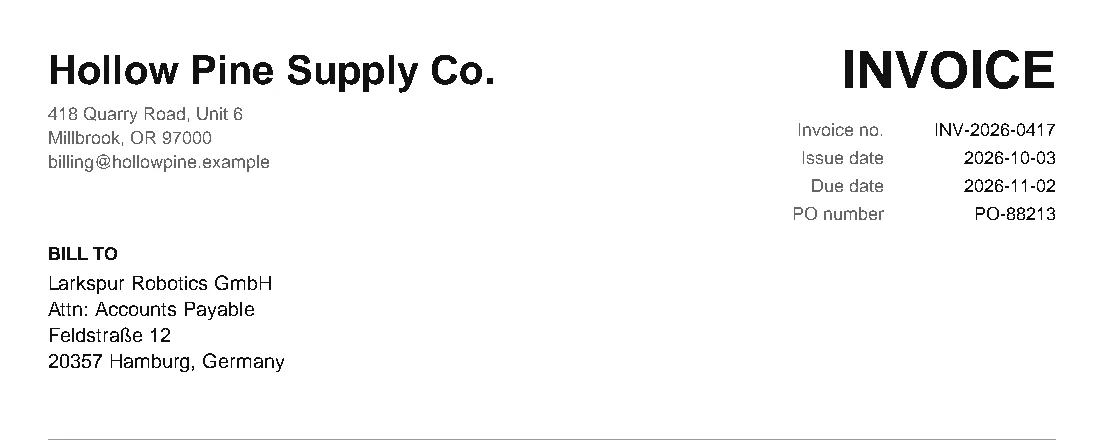
x0 is the distance from the left edge, top the distance from the top edge, and x1 / bottom the far sides. With those four numbers you can select anything on the page. Characters, lines, rectangles and images carry the same keys; the objects reference lists them all.
4. Crop to the part you need
page.crop(bbox) returns a new page that only contains objects inside the box (x0, top, x1, bottom). Everything else, including text, is cut away.
import pdfplumber

with pdfplumber.open("samples/invoice.pdf") as pdf:
    page = pdf.pages[0]
    # (x0, top, x1, bottom) in points, measured from the top-left corner
    bill_to = page.crop((50, 125, 300, 225))
print(bill_to.extract_text())BILL TO
Larkspur Robotics GmbH
Attn: Accounts Payable
Feldstraße 12
20357 Hamburg, Germany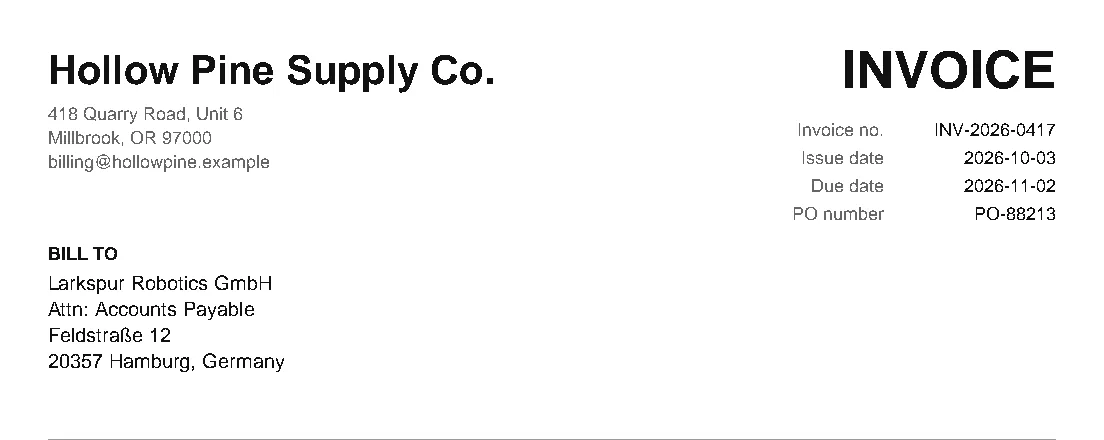
This is how you pull fields out of forms, invoices and statements: find the region once, then crop it on every document with the same layout. The coordinates guide has a tool that measures boxes on your own PDF.
5. Extract a table
import pdfplumber

with pdfplumber.open("samples/invoice.pdf") as pdf:
    page = pdf.pages[0]
    table = page.extract_table()

header, *rows = table
print(header)
for row in rows:
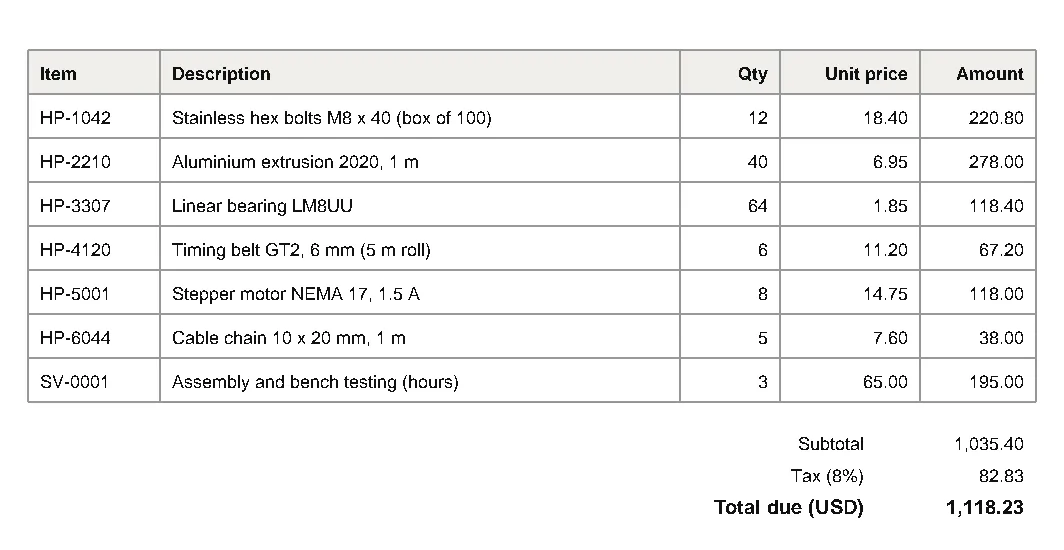
print(row)['Item', 'Description', 'Qty', 'Unit price', 'Amount']
['HP-1042', 'Stainless hex bolts M8 x 40 (box of 100)', '12', '18.40', '220.80']
['HP-2210', 'Aluminium extrusion 2020, 1 m', '40', '6.95', '278.00']
['HP-3307', 'Linear bearing LM8UU', '64', '1.85', '118.40']
['HP-4120', 'Timing belt GT2, 6 mm (5 m roll)', '6', '11.20', '67.20']
['HP-5001', 'Stepper motor NEMA 17, 1.5 A', '8', '14.75', '118.00']
['HP-6044', 'Cable chain 10 x 20 mm, 1 m', '5', '7.60', '38.00']
['SV-0001', 'Assembly and bench testing (hours)', '3', '65.00', '195.00']extract_table() returns the largest table on the page as a list of rows, each a list of cell strings. It found this one by following the ruling lines that are drawn on the page:
Use extract_tables() (plural) when a page has more than one table, and find_tables() when you also want each table’s position. The tables guide explains how detection works.
6. Fix a table the defaults miss
Real documents are less tidy. The bank statement draws a line under every row but no lines between columns, so the default settings find nothing:
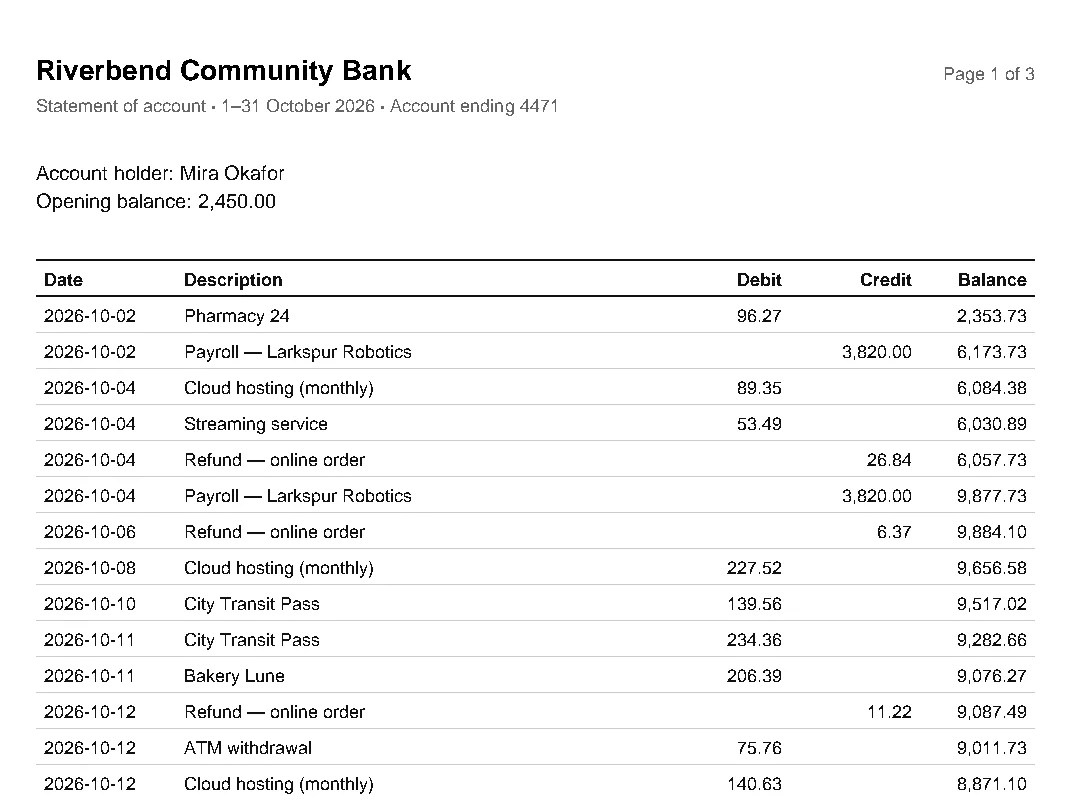
You could switch the columns to "vertical_strategy": "text", which infers columns from how words line up. On this page that gets close but invents an extra column at x ≈ 180, where several second words happen to start, and splits Payroll — Lark | spur Robotics. Telling pdfplumber exactly where the columns are is more reliable. The header row gives you that for free:
import pdfplumber

with pdfplumber.open("samples/bank-statement.pdf") as pdf:
    page = pdf.pages[0]
    print("default settings:", len(page.find_tables()), "tables found")

    # Rows are ruled, columns are not. Put a column boundary halfway
    # between neighbouring header words.
    names = ["Date", "Description", "Debit", "Credit", "Balance"]
    header = [w for w in page.extract_words() if w["text"] in names]
    edges = [header[0]["x0"] - 4]
    edges += [(a["x1"] + b["x0"]) / 2 for a, b in zip(header, header[1:])]
    edges += [header[-1]["x1"] + 4]

    table = page.extract_table({
        "vertical_strategy": "explicit",
        "explicit_vertical_lines": edges,
        "horizontal_strategy": "lines",
    })
    print(len(table), "rows x", len(table[0]), "columns")
    for row in table[:4]:
print(row)default settings: 0 tables found
23 rows x 5 columns
['Date', 'Description', 'Debit', 'Credit', 'Balance']
['2026-10-02', 'Pharmacy 24', '96.27', '', '2,353.73']
['2026-10-02', 'Payroll — Larkspur Robotics', '', '3,820.00', '6,173.73']
['2026-10-04', 'Cloud hosting (monthly)', '89.35', '', '6,084.38']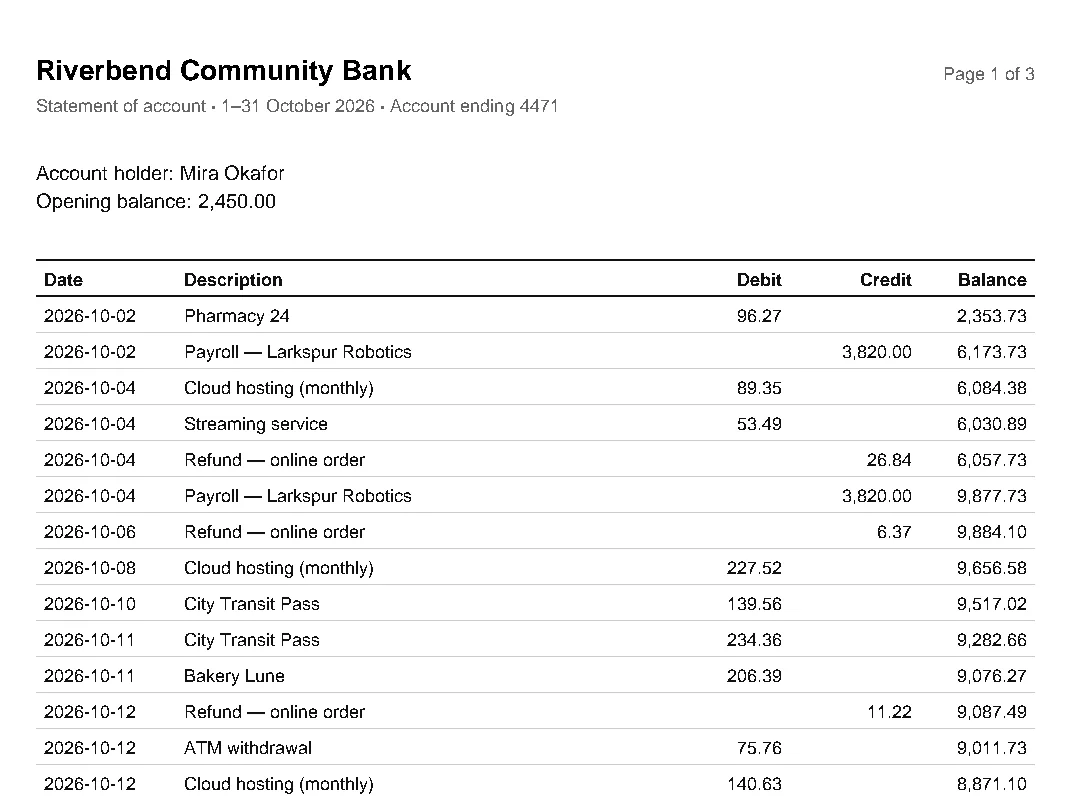
The same code works on pages 2 and 3, because the header repeats. This pattern, let the document tell you where the columns are, solves most borderless tables. table_settings documents every option, and borderless tables goes deeper.
7. Save the table as CSV
Rows are plain lists, so the standard csv module writes them directly. Quoting is handled for cells that contain commas:
import csv
import pdfplumber

with pdfplumber.open("samples/invoice.pdf") as pdf:
    table = pdf.pages[0].extract_table()

with open("invoice-items.csv", "w", newline="", encoding="utf-8") as f:
    csv.writer(f).writerows(table)

print(open("invoice-items.csv", encoding="utf-8").read())Item,Description,Qty,Unit price,Amount
HP-1042,Stainless hex bolts M8 x 40 (box of 100),12,18.40,220.80
HP-2210,"Aluminium extrusion 2020, 1 m",40,6.95,278.00
HP-3307,Linear bearing LM8UU,64,1.85,118.40
HP-4120,"Timing belt GT2, 6 mm (5 m roll)",6,11.20,67.20
…For pandas DataFrames, Excel files with one sheet per table, and number cleaning, see export tables.
8. See what pdfplumber saw
When a result surprises you, draw it. to_image() renders the page and debug_tablefinder() overlays the table finder’s edges, intersections and cells, using the same settings as your extraction:
import pdfplumber

with pdfplumber.open("samples/bank-statement.pdf") as pdf:
    page = pdf.pages[0]
    # The settings from step 6: columns between the header words, rows from the rules
    names = ["Date", "Description", "Debit", "Credit", "Balance"]
    header = [w for w in page.extract_words() if w["text"] in names]
    edges = [header[0]["x0"] - 4]
    edges += [(a["x1"] + b["x0"]) / 2 for a, b in zip(header, header[1:])]
    edges += [header[-1]["x1"] + 4]
    settings = {"vertical_strategy": "explicit", "explicit_vertical_lines": edges,
                "horizontal_strategy": "lines"}

    im = page.to_image(resolution=100)
    im.debug_tablefinder(settings)
    im.save("bank-statement-debug.png")
print("saved bank-statement-debug.png", im.original.size)saved bank-statement-debug.png (827, 1170)Open the PNG and you will see the picture from step 6. The interactive figures on this site are built from exactly this data. More drawing methods are in visual debugging.
9. Process every page and every file
Loop over pdf.pages for multi-page documents and over files for batches. Real folders contain files that cannot be opened, so catch pdfplumber’s exception per file and keep going. Here is a summary of the site’s whole sample folder:
from pathlib import Path
import pdfplumber
from pdfplumber.utils.exceptions import PdfminerException

for path in sorted(Path("samples").glob("*.pdf")):
    try:
        with pdfplumber.open(path) as pdf:
            n_chars = sum(len(p.chars) for p in pdf.pages)
            print(f"{path.name:22} {len(pdf.pages)} page(s)  {n_chars:>5} chars")
    except PdfminerException as e:
        # One bad file should not stop a batch: log it and move on
print(f"{path.name:22} skipped: {type(e.args[0]).__name__}")bank-statement.pdf 3 page(s) 3122 chars
borderless-table.pdf 1 page(s) 435 chars
cid-font.pdf 1 page(s) 141 chars
cid-subset.pdf 1 page(s) 276 chars
encrypted.pdf skipped: PDFPasswordIncorrect
form-flattened.pdf 1 page(s) 227 chars
form.pdf 1 page(s) 159 chars
framed-table.pdf 1 page(s) 244 chars
images.pdf 2 page(s) 366 chars
imperfect-tables.pdf 1 page(s) 403 chars
invoice.pdf 1 page(s) 851 chars
merged-cells.pdf 1 page(s) 330 chars
multilingual.pdf 1 page(s) 276 chars
page-boxes.pdf 1 page(s) 321 chars
report.pdf 2 page(s) 1223 chars
scanned-invoice.pdf 1 page(s) 0 chars
spacing-cases.pdf 1 page(s) 386 chars
split-rows.pdf 2 page(s) 3184 chars
styled-text.pdf 1 page(s) 277 chars
tagged-report.pdf 1 page(s) 872 chars
text-quirks.pdf 1 page(s) 485 chars
two-column.pdf 2 page(s) 9654 charsTwo files need attention. encrypted.pdf needs a password (pdfplumber.open(path, password="plumber"); see errors). scanned-invoice.pdf opens but has zero characters: it is a picture of a page with no text layer, which pdfplumber cannot read until you run OCR (scanned PDFs).