Tables
Merged cells
A merged cell covers several positions in a table's grid, but pdfplumber gives you one string per position. It keeps the text once and marks the positions the merge covers with None. Once you know that rule, every merged header and spanned row can be put back together.
Short answer
A merged cell’s text comes back once, in the top-left position it covers. Every other position under the merge is None:
import pdfplumber

with pdfplumber.open("samples/merged-cells.pdf") as pdf:
    table = pdf.pages[0].extract_table()

for row in table:
print(row)['Day', 'Rooms', None, None]
[None, 'North hall', 'Lab B', 'Studio']
['Monday', 'Intro to PDF structure', 'Hands-on: extracting\ntables', '(closed)']
['Tuesday', 'Coordinates and cropping (double session, both rooms)', None, 'Visual debugging clinic']
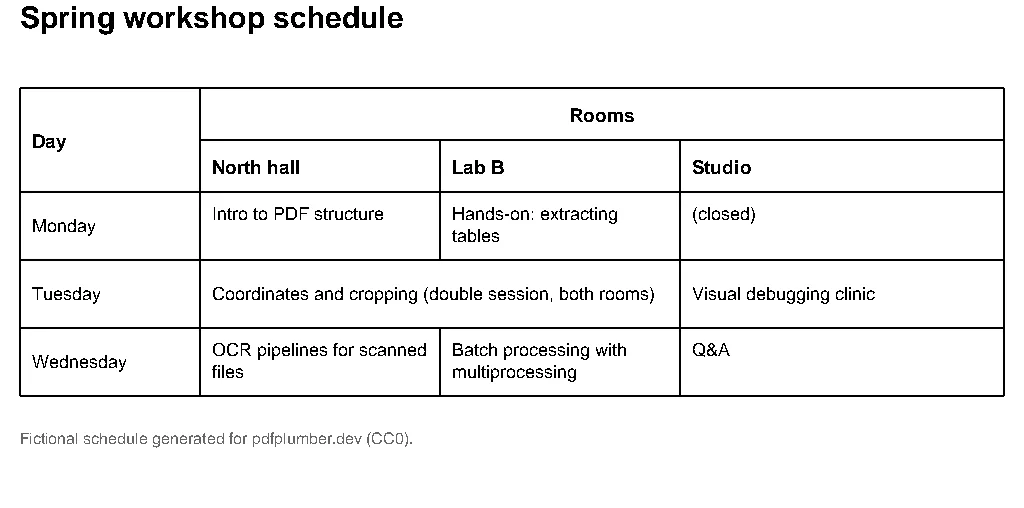
['Wednesday', 'OCR pipelines for scanned\nfiles', 'Batch processing with\nmultiprocessing', 'Q&A']The sample is merged-cells.pdf: Day spans two header rows, Rooms spans three columns, and Tuesday’s session spans two rooms. Each of those merges produces the None values you see.
None and "" mean different things
pdfplumber makes one row for every distinct cell top and one column for every distinct cell left edge, then puts each cell at the position of its top-left corner. Positions where no cell starts are left empty. That gives two kinds of blank:
| Value | Meaning | What to do |
|---|---|---|
None |
No cell starts here: the position is covered by a merged cell to the left or above | Fill it from that neighbour if you need one value per position |
"" |
A real cell with no text in it | Keep it blank; the document left it empty |
Keep the two apart when you clean a table. Replacing every None with "" too early (a common first step) throws away the only sign that a merge was there.
A None can also appear where the document has no merge at all: if a ruling line stops short of the table edge, or two lines miss each other by a point or two, pdfplumber sees one wide cell where you see two. That is a detection problem rather than a merge; the table not detected guide shows how to spot it and which tolerance fixes it.
Fill merged cells and flatten a two-row header
To analyse the table, you usually want one value in every position and one header row. A None alone does not say which way the merge goes: it could be covered by the cell to its left or the cell above. The cell boxes do say, so use find_table() and copy each cell’s text into every position its box covers:
import pdfplumber

with pdfplumber.open("samples/merged-cells.pdf") as pdf:
    table = pdf.pages[0].find_table()
    rows = table.extract()

# Grid lines as pdfplumber uses them: one row per distinct cell top,
# one column per distinct cell left edge
tops = sorted({cell[1] for cell in table.cells})
lefts = sorted({cell[0] for cell in table.cells})

# Copy each cell's text into every grid position its box covers
filled = [row[:] for row in rows]
for r, row in enumerate(table.rows):
    for c, cell in enumerate(row.cells):
        if cell is None:
            continue
        x0, top, x1, bottom = cell
        for rr, t in enumerate(tops):
            for cc, x in enumerate(lefts):
                if top <= t < bottom and x0 <= x < x1:
                    filled[rr][cc] = rows[r][c]

# Two header rows become one: "Rooms: North hall", ...
top_row, sub_row = filled[0], filled[1]
header = [a if a == b else f"{a}: {b}" for a, b in zip(top_row, sub_row)]
print(header)
for row in filled[2:]:
print([text.replace("\n", " ") for text in row])['Day', 'Rooms: North hall', 'Rooms: Lab B', 'Rooms: Studio']
['Monday', 'Intro to PDF structure', 'Hands-on: extracting tables', '(closed)']
['Tuesday', 'Coordinates and cropping (double session, both rooms)', 'Coordinates and cropping (double session, both rooms)', 'Visual debugging clinic']
['Wednesday', 'OCR pipelines for scanned files', 'Batch processing with multiprocessing', 'Q&A']The simpler shortcut you will see in answers online, “copy from the left, then from above”, happens to work on this table. It goes wrong on others: a cell that spans two rows in the second column gets its lower half filled from the cell to its left. Filling in the other order breaks this table instead, putting Monday’s Hands-on: extracting tables into Tuesday’s Lab B (we ran both). The box-based version has no order to get wrong.
pdfplumber has no setting that does this fill for you. Repeating the merged value in every position has been requested (#420, open), and how to handle merges comes up regularly (#79, #84, #979). The few lines above are the standard answer.
Keep the structure: rebuild rowspan and colspan
When the output is HTML or Markdown for people or for a language model, flattening loses information. The cell boxes still carry the original structure: a cell spans as many grid columns as there are column boundaries between its left and right edges, and the same for rows. find_table() gives you those boxes:
from html import escape

import pdfplumber

with pdfplumber.open("samples/merged-cells.pdf") as pdf:
    table = pdf.pages[0].find_table()
    xs = sorted({round(v, 1) for c in table.cells for v in (c[0], c[2])})
    ys = sorted({round(v, 1) for c in table.cells for v in (c[1], c[3])})
    texts = {tuple(c): t for row, trow in zip(table.rows, table.extract())
             for c, t in zip(row.cells, trow) if c is not None}

    # Rebuild each cell's rowspan and colspan from its box
    rows = []
    for y0 in ys[:-1]:
        cells = sorted((c for c in table.cells if round(c[1], 1) == y0), key=lambda c: c[0])
        tds = []
        for c in cells:
            colspan = xs.index(round(c[2], 1)) - xs.index(round(c[0], 1))
            rowspan = ys.index(round(c[3], 1)) - ys.index(round(c[1], 1))
            attrs = (f' colspan="{colspan}"' if colspan > 1 else "") + (f' rowspan="{rowspan}"' if rowspan > 1 else "")
            text = (texts.get(tuple(c)) or "").replace("\n", " ")
            tds.append(f"<td{attrs}>{escape(text)}</td>")
        rows.append("<tr>" + "".join(tds) + "</tr>")
print("\n".join(rows))<tr><td rowspan="2">Day</td><td colspan="3">Rooms</td></tr>
<tr><td>North hall</td><td>Lab B</td><td>Studio</td></tr>
<tr><td>Monday</td><td>Intro to PDF structure</td><td>Hands-on: extracting tables</td><td>(closed)</td></tr>
<tr><td>Tuesday</td><td colspan="2">Coordinates and cropping (double session, both rooms)</td><td>Visual debugging clinic</td></tr>
<tr><td>Wednesday</td><td>OCR pipelines for scanned files</td><td>Batch processing with multiprocessing</td><td>Q&A</td></tr>Rendered, the output is the same table as the PDF:
| Day | Rooms | ||
| North hall | Lab B | Studio | |
| Monday | Intro to PDF structure | Hands-on: extracting tables | (closed) |
| Tuesday | Coordinates and cropping (double session, both rooms) | Visual debugging clinic | |
| Wednesday | OCR pipelines for scanned files | Batch processing with multiprocessing | Q&A |
Rounding to one decimal place keeps boundaries that differ by floating-point noise from creating extra grid lines. If your PDF’s lines are slightly misaligned (a boundary at 150.0 in one row and 150.6 in another), round more coarsely or snap them with the table setting snap_tolerance first.
Markdown tables cannot express spans, so for Markdown, use the filled version from the previous section and accept the repeated values.
Multi-line text inside a cell
Text that wraps inside a cell keeps its line breaks: 'Hands-on: extracting\ntables'. pdfplumber joins the cell’s characters with the same rules as extract_text(), so each visual line becomes a line of the string.
Usually you want a single line: cell.replace("\n", " "), as in the examples above. Two cases need more care:
- Hyphenated breaks.
"multi-\nprocessing"becomes"multi- processing". If the document hyphenates, join lines ending in-without a space, and check a few results, because real hyphens (Hands-on) can also fall at a line end. - Cells that hold a list. Addresses and line-item descriptions use line breaks as separators. Split on
"\n"instead of joining.
If a long cell’s lines come back as separate rows instead, the table has no line between those rows and you are using the text strategy; fold the continuation rows back with the recipe in borderless tables.
Merges in tables without ruling lines
Everything above depends on the cell boxes, which come from drawn lines. In a borderless table, a heading centred over three columns is just a word sitting above them, and the text strategy cannot tell that it spans anything. Two practical options:
- Crop the header band away, extract the body with explicit column positions (borderless tables), and write the header yourself, since it rarely changes between documents of one layout.
- Or read the header words with
extract_words()and assign each to the columns itsx0–x1overlaps, which gives you the span directly.